
Secure File Transfer Protocol (SFTP)
How to use SFTP from Windows or Mac
Overview
SFTP is a good way to transfer files across untrusted networks.
You will need a client:
Systems running SFTP
| Server | Hostname | IP | Fingerprint | Visibility |
|---|---|---|---|---|
| Larch | larch.gen.private.cam.ac.uk | 172.29.13.208 | 90:4e:4c:da:9e:16:2d:61:26:a1:3b:4a:e5:a7:e0:40 | Cambridge |
| Amaserv | amaserv.gen.cam.ac.uk | 131.111.146.8 | ba:1c:95:8c:36:0e:36:f2:24:4a:a9:84:0c:77:22:df | Internet |
| websvc | websvc.gen.cam.ac.uk | 131.111.46.23 | 78:20:36:e4:f5:5c:d7:5a:c4:68:7a:0c:b4:44:08:f1 | Internet |
Using WinSCP
Open the program, you should get a display like this:
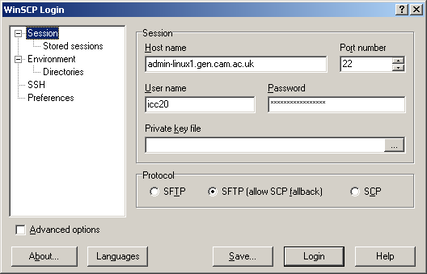
Enter the address you'd like to connect to and your username/password. Click connect, if you've not connected before you will see something like:
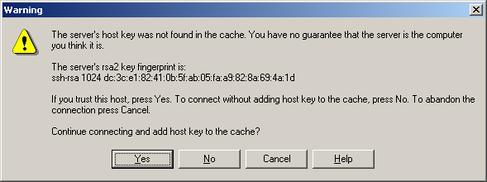
If the line beginning ssh-rsa is identical to the fingerprint in the table above, you are connecting to the correct server and can click yes. Otherwise, you're probably connecting to a different server. Once you're connected you will probably get a window divided into two parts:
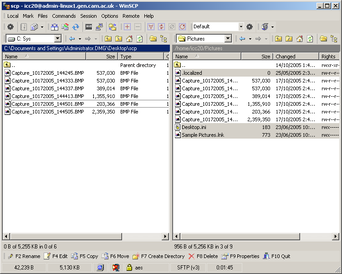
You can drag and drop between these two panes, which should bring up a dialogue like this:
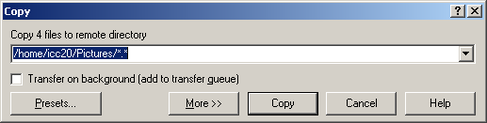
Most of the time just click "Copy"
Using Cyberduck
When you first launch Cyberduck it should look something like this.
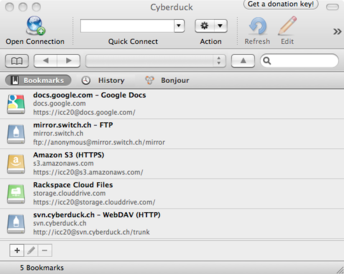
It also remembers what server you were connected to the last time you launched it, so it may well connect again for you.
I prefer to connect by putting the address in the Quick Connect box on the toolbar, for example sftp://larch.gen.private.cam.ac.uk/group/dept/Example and pressing return.
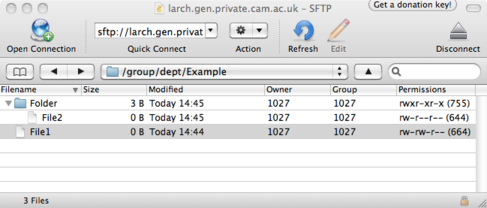
I can now drag and drop files.